This week's goal
Children create a 5–10 second animation of the character moving, changing clothes, and saying at least one sentence.
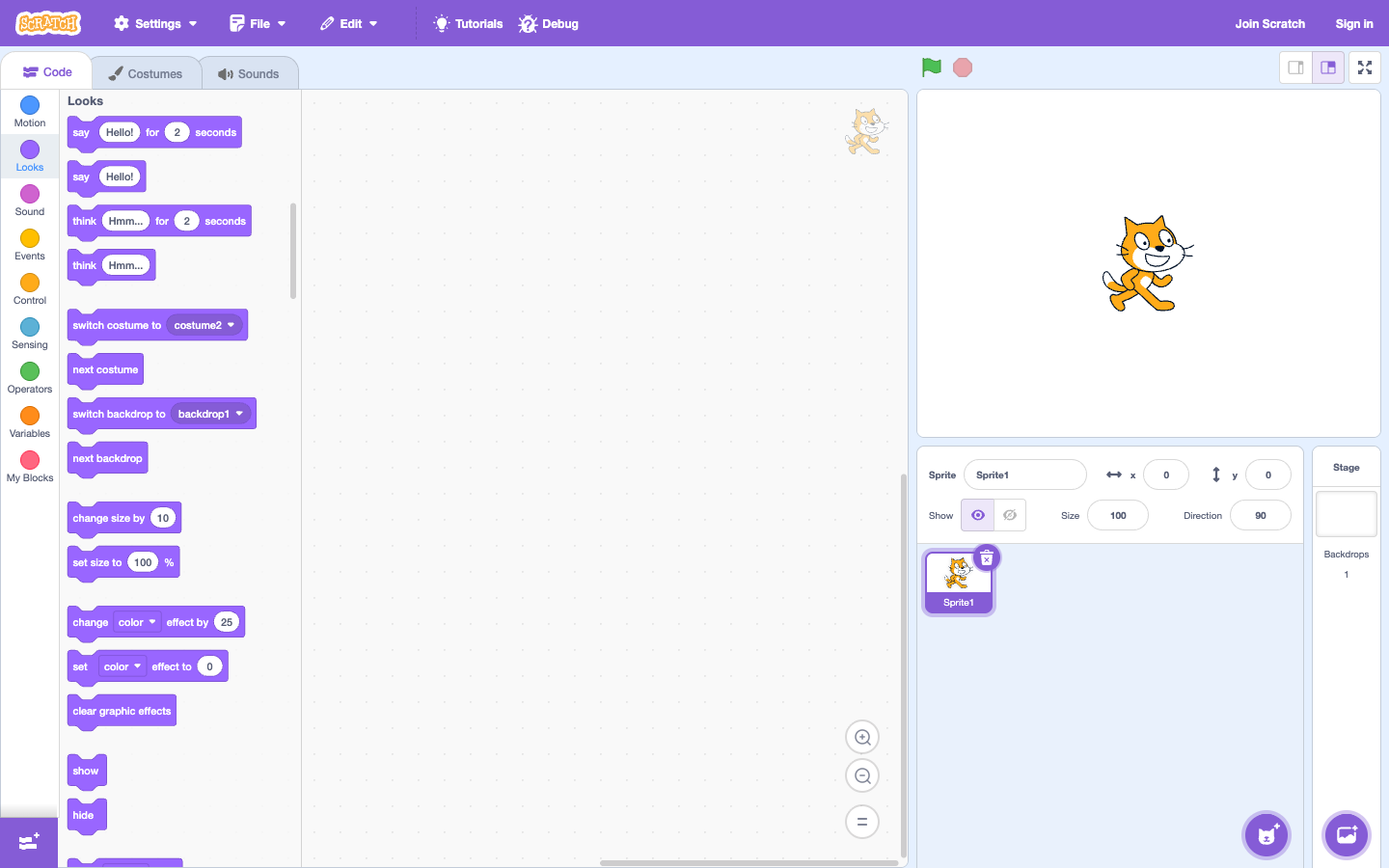
Challenge 1: character walking
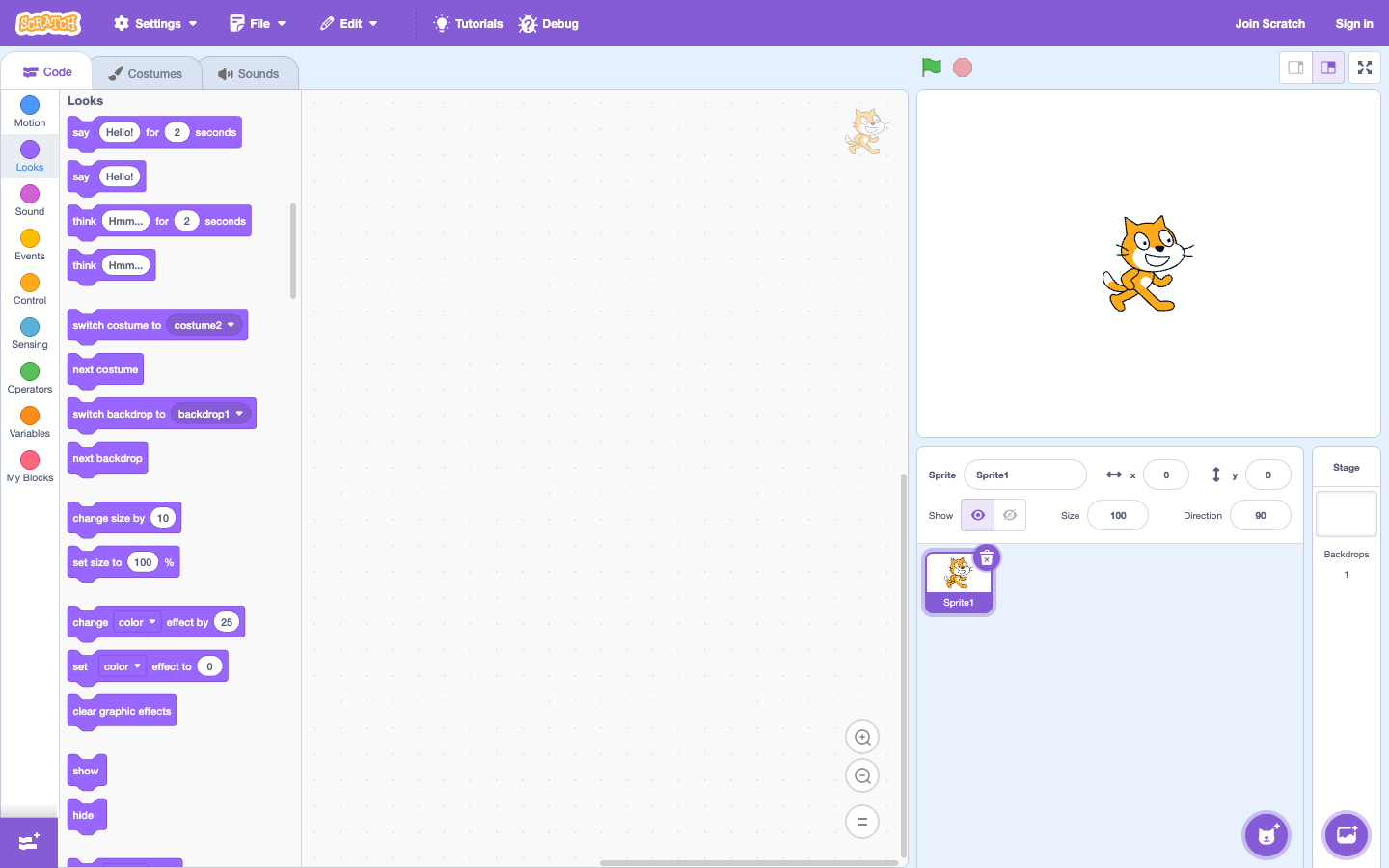
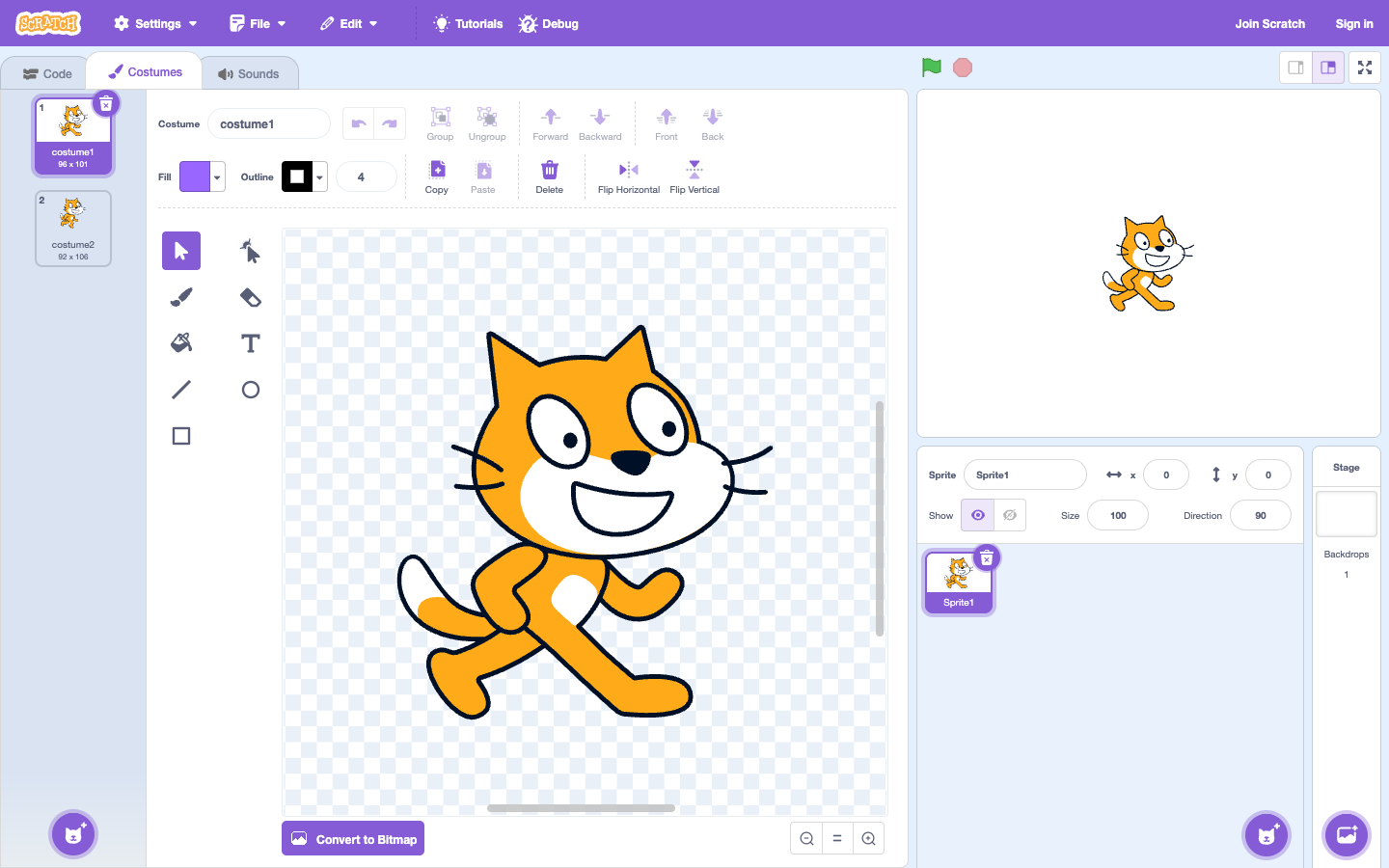
Using the green flag, block repeat, di switch and next outfit. After each outfit change, add a very short waiting period. Baby try running and then adjust the speed yourself so that the movement is not too fast.
Challenge 2: a conversation
Add another character or use dialogue for the first character. The child decides who speaks first. This is an opportunity to reiterate the sequence: the two characters do not know when it is their turn until there is an event or timeout.
Challenge 3: change the scene
Choose two backdrops and change the scene in the middle of the story. Ask your child: "When the background changed, where was the character? What just happened?"
Step-by-step lesson script
- Choose a character and two different costumes.
- Plan three scenes: beginning, action, end.
- Get the movement going before adding dialogue and backdrop.
- Review with your child and ask which part needs to be slower or faster.
Don't aim for beautiful animation. A short story, with a beginning and an end, edited by your child, will help your child learn more than a completely copied video. perfect.
When is week 3?
When your baby understands the loop, he can do a repeating action and use it himself instead of pulling many similar blocks.
Karotto helps him get used to blocks
Karotto deals cards Practice into short goals, help your child get used to combining blocks and observing the results before freely creating animations in Scratch.
See Karotto on the App Store →